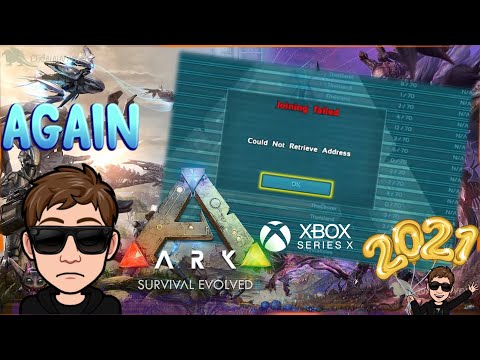
Changing your Xbox DNS settings is hands-down one of the easiest ways to improve your gaming connection. It can fix a ton of errors — including the ARK 'could not retrieve address' bug, random disconnects, slow marketplace loading, and party chat issues. Here's exactly how to do it.
Follow the video guide — works on Xbox One, Xbox Series X, and Xbox Series S.
What Does Changing DNS Do?
Your DNS (Domain Name System) translates web addresses into server IPs. Your ISP's default DNS is often slow, overloaded, or poorly routed. Switching to a faster third-party DNS can reduce ping, fix connection errors, and speed up downloads.
Step-by-Step: Change Xbox DNS
- Press the Xbox button and go to Settings
- Go to General → Network Settings
- Select Advanced Settings
- Select DNS Settings → Manual
- Enter your preferred DNS:
| Provider | Primary DNS | Secondary DNS |
|---|---|---|
| Google (Recommended) | 8.8.8.8 | 8.8.4.4 |
| Cloudflare (Fastest) | 1.1.1.1 | 1.0.0.1 |
| OpenDNS | 208.67.222.222 | 208.67.220.220 |
- Save your settings
- Go back to Network Settings → Test Network Speed & Statistics to verify
- Restart your Xbox for best results
Which DNS Should I Use?
- Google (8.8.8.8) — Best all-around reliability. Most people see great results with this.
- Cloudflare (1.1.1.1) — Generally the fastest DNS globally. Great for reducing latency.
- OpenDNS — Good option if the others aren't working for you.
This guide is based on Danny's personal experience. Results may vary depending on your ISP and region. If one DNS doesn't help, try another!
This Also Fixes
- ARK: Survival Evolved — 'Joining failed, could not retrieve address' (see full guide)
- Minecraft Marketplace loading slowly
- Random party chat disconnects
- Xbox Store purchase errors
- High ping in online games
Subscribe on YouTube to catch more Xbox tips and gaming guides from Danny!
Subscribe on YouTube Join the Discord